data protection management (DPM)
What is data protection management?
Data protection management (DPM) is the administration, monitoring and management of backup processes to ensure backup tasks run on schedule and data is securely backed up and recoverable. Good data protection management means having effective backup processes and methodologies in place to maintain data integrity.
Data protection management refers to the best practices an organization applies to managing data protection applications and operations. However, it's also a technology and product category with both backup and systems management application vendors providing software that addresses data protection.
DPM software first entered the enterprise data storage market with data backup reporting tools designed to help storage and backup administrators analyze their backup environments. Early DPM products reported on backup failure and success rates, typically relying on the backup applications' operational log files.
Over time, DPM products became more than just log analyzers; they could also survey the environment and determine if any volumes, directories or files were missed during the backup process. DPM software can also discover orphaned servers that aren't included in current protection policies. They are essential tools for demonstrating compliance with laws and regulatory requirements addressing data protection and data management.
This article is part of
What is data protection and why is it important?
Why is data protection management important?
DPM applications provide backup management features that many backup apps lack. DPM programs have been around for more than two decades. Many backup applications include DPM features and have extensive DPM capabilities.
In addition to reporting on the effectiveness of backup activities, DPM also indicates the likely success of data recovery efforts. Confidence in the recoverability of backed-up data is important for routine recoveries where a file or two or a directory has been deleted or damaged, and DPM technology is increasingly essential for disaster recovery (DR) planning. Many DPM applications can simulate a DR scenario and indicate which files can be recovered to ensure business continuity.
DPM is particularly useful for customers who use more than one vendor's backup application in their data protection infrastructure. Those mixed-vendor environments require expertise in each of the backup apps in use, as well as monitoring and reporting on each one separately. Some DPM products can support a variety of backup applications, making it possible to access, manage and monitor the various backup systems from a single dashboard.
DPM can enhance the backup process and data protection policies in other ways, including the following:
- Managing snapshots. Increasingly, users are turning to storage array snapshotting capabilities to accelerate data backup. DPM apps provide tools to manage those proprietary storage snapshots from different storage vendors.
- Ensuring regulatory compliance. DPM tools can track data to ensure that its use doesn't conflict with specific regulatory directives such as the Health Insurance Portability and Accountability Act (HIPAA) and the European Union's General Data Protection Regulation (GDPR).
- Storage management. Given their reach across multiple server and storage systems and cloud computing resources, DPM applications can report on the general health of these systems, going beyond just managing data protection processes.
Who needs data protection management?
The short answer is any organization that has data and wants to keep it safe. From public and private sector organizations to individual users, data protection is an essential part of overall IT administration. It takes many forms, from thumb drives used as data backup tools to on-premises data storage assets and cloud storage resources.
Deciding to establish a process for protecting data is one of the most important decisions an organization can make. Not only is it an important step toward DPM, it's also essential for complying with laws and regulations addressing data protection issues.
The GDPR and HIPAA address data protection and privacy, respectively. Compliance with the GDPR is an increasingly important mandate, and compliance with HIPAA rules for information security and data privacy is essential in the United States.
What should be part of a DPM strategy?
Modern DPM tools let storage administrators use service levels to set backup and recovery policies and tier data protection based on its value to the business. Newer products are designed to help admins understand what works in their environment, so they spend less time troubleshooting and more time managing errors and infrastructure issues. A DPM tool provides insight into these issues; something standalone backup applications can't always do.
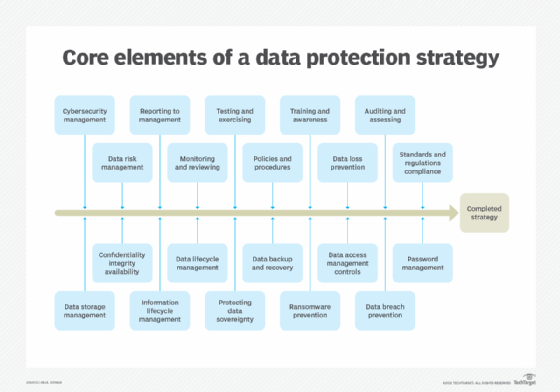
In addition to the features described above, a good DPM process should also include the following capabilities:
- Configure storage systems and related software, such as general storage management such as space allocation.
- View and determine the status of all current and past data protection processes.
- Automate data loss prevention and provide information to address potential losses.
- Establish a data inventory using data discovery technologies.
- Enable a system to handle alerts that would indicate a backup process failure and a methodology for responding to and resolving alerts.
- Provide resources that protect the confidentiality, integrity and availability of sensitive data from data breaches and cyber attacks using access control and authentication.
- Ensure data privacy as part of an overall data protection strategy.
Data protection officer and data protection impact assessments
One of the requirements of the GDPR is to designate a data protection officer (DPO). A DPO provides a single point of contact within an organization for all activities associated with protecting its data and information assets.
The DPO's responsibilities include establishing data protection strategies, policies and procedures; serving as a liaison across the organization for all data protection activities and stakeholders; and ensuring the organization and its business processes are compliant with the GDPR and other data protection regulations and legislation.
Another requirement of the GDPR is performing a data protection impact assessment (DPIA). These risk assessments identify threats and vulnerabilities that could impact the integrity of data, especially personal data and other sensitive information. A DPIA should be part of an overall corporate risk management process, and the results can provide evidence for audits.
Examples of DPM tools
Many backup applications include DPM features as these applications evolve into data management platforms that protect an organization's data.
Vendors offering data protection management systems include the following:
- Amazon Web Services offers a selection of products addressing data protection, including Amazon S3 and Amazon Backup.
- Arcserve has several data protection products, including Arcserve Unified Data Protection, Replication and High Availability, and Assured Recovery.
- Bocada provides a dashboard that links to a variety of data protection products, such as Veritas NetBackup and NetApp systems.
- Carbonite offers its Data Protection Platform that sets the appropriate level of data protection for each type of data.
- Cobalt Iron has Compass, a multifunction platform for data protection and data management.
- Dell Technologies' Data Protection Suite provides tools that address data protection in cloud and noncloud environments.
- NetApp offers the Ontap data protection platform. It also offers a Data Protection and Security Assessment to identify risks in a data protection program, data security and cybersecurity.
- Rocket Servergraph provides a suite of DPM services for a variety of data backup applications.
- SolarWinds Access Rights Manager provides a variety of data protection services.
- Veritas offers its flagship backup product, NetBackup, with extensive DPM features. The company also offers Alta Data Protection for cloud environments.
Learn more about data protection impact assessments and check out our free, downloadable templates.