domain name system (DNS)
What is DNS?
The domain name system (DNS) is a naming database in which internet domain names are located and translated into Internet Protocol (IP) addresses. The domain name system maps the name people use to locate a website to the IP address that a computer uses to locate that website.
For example, if someone types "example.com" into a web browser, a server behind the scenes maps that name to the corresponding IP address. An IP address is similar in structure to 203.0.113.72.
Web browsing and most other internet activities rely on DNS to quickly provide the information necessary to connect users to remote hosts. DNS mapping is distributed throughout the internet in a hierarchy of authority. Access providers and enterprises, as well as governments, universities and other organizations, typically have their own assigned ranges of IP addresses and an assigned domain name. They also typically run DNS servers to manage the mapping of those names to those addresses. Most Uniform Resource Locators (URLs) are built around the domain name of the web server that takes client requests.
How DNS works
DNS servers convert URLs and domain names into IP addresses that computers can understand and use. They translate what a user types into a browser into something the machine can use to find a webpage. This process of translation and lookup is called DNS resolution.
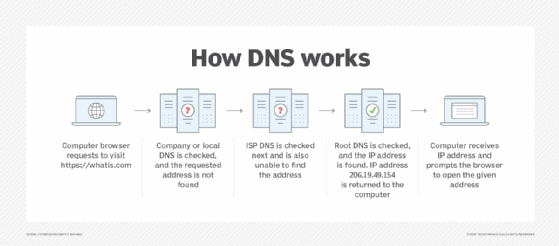
The basic process of a DNS resolution follows these steps:
- The user enters a web address or domain name into a browser.
- The browser sends a message, called a recursive DNS query, to the network to find out which IP or network address the domain corresponds to.
- The query goes to a recursive DNS server, which is also called a recursive resolver, and is usually managed by the internet service provider (ISP). If the recursive resolver has the address, it will return the address to the user, and the webpage will load.
- If the recursive DNS server does not have an answer, it will query a series of other servers in the following order: DNS root name servers, top-level domain (TLD) name servers and authoritative name servers.
- The three server types work together and continue redirecting until they retrieve a DNS record that contains the queried IP address. It sends this information to the recursive DNS server, and the webpage the user is looking for loads. DNS root name servers and TLD servers primarily redirect queries and rarely provide the resolution themselves.
- The recursive server stores, or caches, the A record for the domain name, which contains the IP address. The next time it receives a request for that domain name, it can respond directly to the user instead of querying other servers.
- If the query reaches the authoritative server and it cannot find the information, it returns an error message.
The entire process querying the various servers takes a fraction of a second and is usually imperceptible to the user.
DNS servers answer questions from both inside and outside their own domains. When a server receives a request from outside the domain for information about a name or address inside the domain, it provides the authoritative answer.
When a server gets a request from within its domain for a name or address outside that domain, it forwards the request to another server, usually one managed by its ISP.
DNS structure
The domain name is usually contained in a URL. A domain name is made of multiple parts, called labels. The domain hierarchy is read from right to left with each section denoting a subdivision.
The TLD appears after the period in the domain name. Examples of top-level domains include .com, .org and .edu, but there are many others. Some may denote a country code or geographic location, such as .us for the United States or .ca for Canada.
Each label on the left-hand side of the TLD denotes another subdomain of the domain to the right. For example, in the URL www.techtarget.com, "techtarget" is a subdomain of .com, and "www." is a subdomain of techtarget.com.
There can be up to 127 levels of subdomains, and each label can have up to 63 characters. The total domain character length can have up to 253 characters. Other rules include not starting or ending labels with hyphens and not having a fully numeric TLD name.
The Internet Engineering Task Force (IETF) has specified rules about implementing domain names in Request for Comments (RFC) 1035.
DNS server types
There are several server types involved in completing a DNS resolution. The following list describes the four name servers in the order a query passes through them. They provide the domain name being sought or referrals to other name servers.
- Recursive server. The recursive server takes DNS queries from an application, such as a web browser. It's the first resource the user accesses and either provides the answer to the query if it has it cached or accesses the next-level server if it doesn't. This server may go through several iterations of querying before returning an answer to the client.
- Root name server. This server is the first place the recursive server sends a query if it doesn't have the answer cached. The root name server is an index of all the servers that will have the information being queried. These servers are overseen by the Internet Corporation for Assigned Names and Numbers, specifically a branch of ICANN called the Internet Assigned Numbers Authority.
- TLD server. The root server directs the query based on the top-level domain -- the .com, .edu or .org in the URL. This is a more specific part of the lookup.
- Authoritative name server. The authoritative name server is the final checkpoint for the DNS query. These servers know everything about a given domain and deal with the subdomain part of the domain name. These servers contain DNS resource records with specific information about a domain, such as the A record. They return the necessary record to the recursive server to send back to the client and cache it closer to the client for future lookups.
A simple way of looking at the process is the recursive server primarily asks on behalf of the user and the authoritative server primarily answers the user query. The root and TLD servers handle the query as it travels from the recursive server to the proper authority.
Types of DNS queries
The following types of DNS queries are the main ones that take place at different points in the DNS resolution:
- Recursive DNS queries are those that take place between the recursive server and the client. The answer provided is either the full name resolution or an error message saying that the name cannot be found. Recursive queries end in either the answer or an error.
- Iterative DNS queries take place between the recursive resolver, which is a local DNS server, and the nonlocal name servers, like the root, TLD and authoritative name servers. Iterative queries do not demand a name resolution; the name servers may instead respond with a referral. The root server refers the recursive server to the TLD, which refers it to an authoritative server. The authoritative server provides the domain name to the recursive server if it has it. Iterative queries resolve in either an answer or a referral.
- Nonrecursive queries are those for which the recursive resolver already knows where to get the answer. The answer is either cached on the recursive server or the recursive server knows to skip the root and TLD servers and go directly to a specific authoritative server. It is nonrecursive because there is no need -- and, therefore, no request -- for any more queries. Nonrecursive queries resolve in the answer. If a recursive resolver has cached an IP address from a previous session and serves that address upon the next request, that is considered a nonrecursive query.
In the basic DNS process, a client makes a recursive query to the recursive resolver, which then makes a series of iterative queries that result in referrals to the next iterative query. Eventually, the query goes to the authoritative server, which, if the recursive resolver knows it will find the answer there, makes a nonrecursive query to retrieve it. The information is then stored on the recursive resolver -- see "DNS caching" section -- so that a nonrecursive query can retrieve it in the future.
Common DNS records
DNS records are the information a query seeks. Depending on the query, client or application, different information is required. Some records are required, such as the A record.
There are many DNS record types, each with their own purpose in denoting how a query should be treated. Common DNS records are the following:
- A record. This stands for address and holds the IP address of a domain. A records only apply to IPv4 addresses. IPv6 addresses have AAAA records instead, which use the longer format of IPv6 addresses. Most websites only have one A record, but some larger sites have several, which helps with load balancing by serving different A records to different users in heavy traffic.
- NS record. These name server records denote which authoritative server is responsible for having all the information about a given domain. Often, domains have both primary and backup name servers to increase reliability, and multiple NS records are used to direct queries to them.
- TXT record. TXT records enable administrators to enter text into DNS. The original purpose was to put human-readable notes in DNS, but today, machine-readable notes are often put there. TXT records are used to confirm domain ownership, secure email and counter email spam.
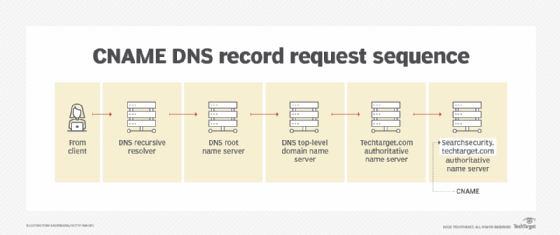
- CNAME record. Canonical name records are used instead of an A record when there is an alias. They are used to retry the query of the same IP address with two different domains. An example would be in the URL searchsecurity.techtarget.com, where the CNAME would query techtarget.com.
How does DNS increase web performance?
Servers can cache the A records, or IP addresses, they receive from DNS queries for a set amount of time. Caching promotes efficiency, enabling servers to respond quickly the next time a request for the same IP address comes in.
For example, if everyone in an office needs to access the same training video on a particular website on the same day, the local DNS server would only have to resolve the name once, and then it can serve all the other requests out of its cache. The length of time the record is held -- also known as the time to live (TTL) -- is set by administrators and depends on various factors. Longer time periods decrease the load on servers, and shorter ones ensure the most accurate responses.
DNS caching
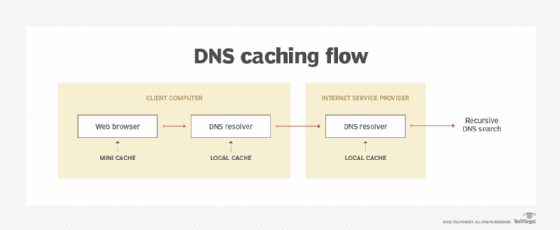
The goal of DNS caching is to reduce the time it takes to get an answer to a DNS query. Caching enables DNS to store previous answers to queries closer to clients and get that same information to them faster the next time it is queried.
DNS data can be cached in a number of places. Some common ones include the following:
- Browser. Most browsers, like Apple Safari, Google Chrome and Mozilla Firefox, cache DNS data by default for a set amount of time. The browser is the first cache that gets checked when a DNS request gets made, before the request leaves the machine for a local DNS resolver server.
- Operating system (OS). Many OSes have built-in DNS resolvers called stub resolvers that cache DNS data and handle queries before they are sent to an external server. The OS is usually queried after the browser or other querying application.
- Recursive resolver. The answer to a DNS query can also be cached on the DNS recursive resolver. Resolvers may have some of the records necessary to return a response and be able to skip some steps in the DNS resolution process. For example, if the resolver has A records but not NS records, the resolver can skip the root server and query the TLD server directly.
DNS security
DNS does have a few vulnerabilities that have been discovered over time. DNS cache poisoning is one such vulnerability. In DNS cache poisoning, data is distributed to caching resolvers, posing as an authoritative origin server. The data can then present false information and can affect TTL. Actual application requests can also be redirected to a malicious host network.
An individual with malicious intent can create a dangerous website with a misleading title and try to convince users that the website is real, giving the hacker access to the user's information. By replacing a character in a domain name with a similar looking character -- such as replacing the number 1 with the letter l, which may look similar -- a user could be fooled into selecting a false link. This is commonly exploited with phishing attacks.
Individuals can use DNS Security Extensions for security. They support cryptographically signed responses.
Brief history of DNS
In the 1970s, all hostnames and their corresponding numerical addresses were contained in a single file called "HOSTS.TXT" and were maintained by Elizabeth Feinler from the Stanford Research Institute. This was known as the Advanced Research Projects Agency Network, or ARPANET, directory, and Feinler manually assigned numerical addresses to domain names. Adding a new name to the directory required a phone call to Feinler.
By the 1980s, this system became too inefficient to maintain. In 1983, the domain name system was created to distribute what was initially one centralized file with every address in it across multiple servers and locations.
In 1986, IETF listed DNS as one of the original internet standards. That organization published two documents -- RFC 1034 and RFC 1035 -- that described the DNS protocol and outlined the types of data it was able to carry.
Since then, DNS has been consistently updated and expanded to accommodate the increasingly complex internet. Today, large ubiquitous information technology companies, like Microsoft and Google, offer their own DNS hosting services.
Learn how organizations can use Microsoft's Azure DNS zones to improve networking control and efficiency in their cloud implementations.